
You’ve created a Content Type to manage your docs. You’ve added the Site Columns. You’ve uploaded the document template in Advanced Settings of the Content Type. You’ve clicked New Document from the library to start a new doc based on your template. And when you go to fill in the metadata – nothing. Your custom columns do not show up in the Info panel in Word or in the Quick Parts.
Annoying right. Here’s the work-around.
Create a separate library called Templates. We just did one for an Integrated Management System, so ours is called IMS Templates.
Add your content types to the library and upload your templates to it.
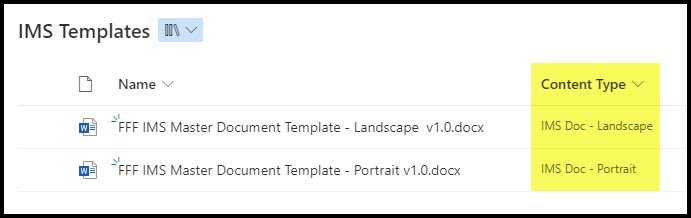
Then open the template in Word directly from SharePoint.

Add the Quick Parts where you need them.

Close and save the document, then download it.
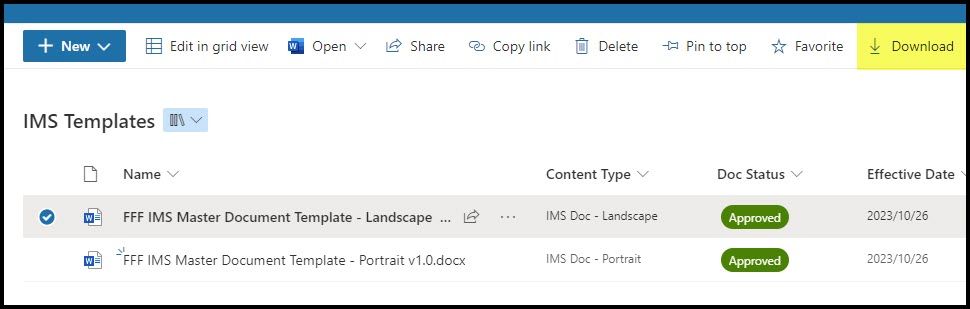
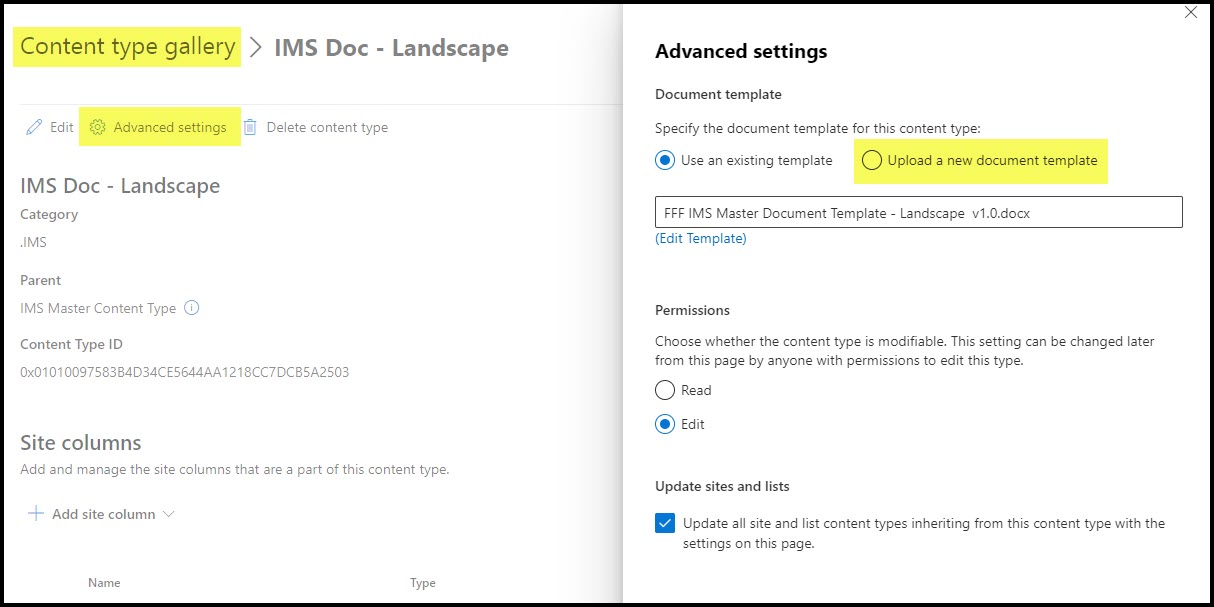
Go to your content type advanced settings and upload the template you just downloaded.
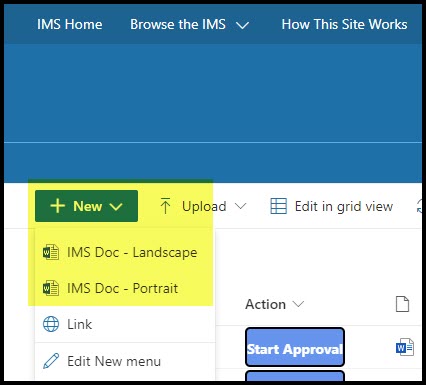
Add the content type to the destination library where you need it. Then when you click New in the library, you will see your templates you uploaded.
Now when you open the doc in Word, you will see the Quick Parts being populated based on your metadata.

PRO TIPS
Delete the downloaded template from your C-drive once you’ve attached it to the content type. The one point of truth must be the templates library on the site. Make changes there as required, then re-download and attach to the content type when required.

Templates also need document control and approval, so don’t forget to add that to the templates library. You could use standard Content Approval for that too.
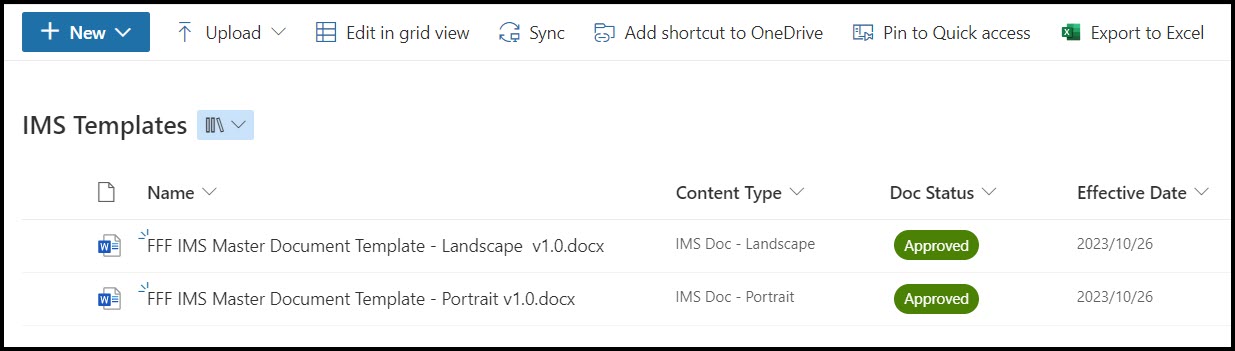
Add the templates library to your Admin menu for ease of management.

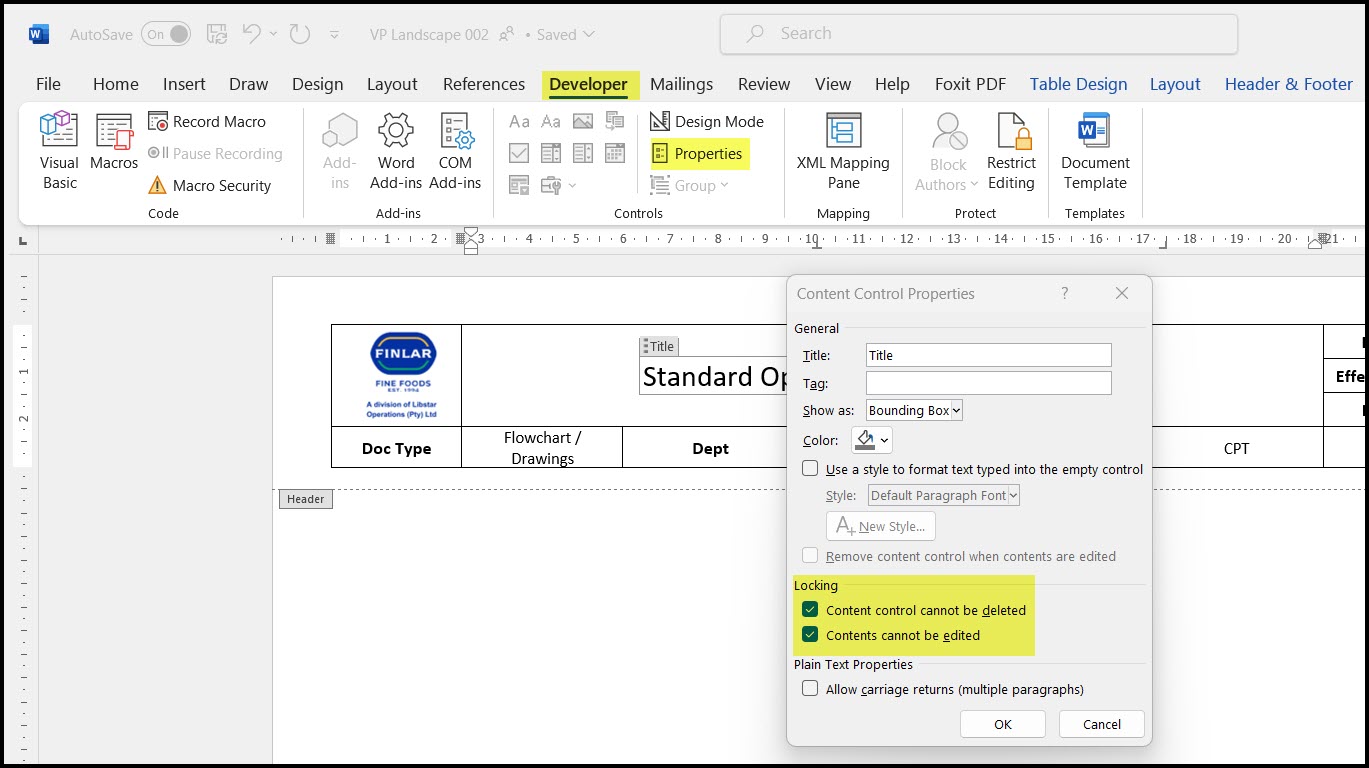
If you are updating the quick parts via metadata in SharePoint and you don’t want users to change the headers or footers that contain them, use Developer Tools in Word to lock the Quick Part down.
Just a heads up if you are new to this; Quick Parts do not work in Excel or PowerPoint, this is only applicable to Word.
Hope that helps.


Thanks Veronique. Using your previous suggestion of the Devloper tab in Word, I was able to access the Quick Parts properties and change the display to Mmm DD, YYYY.
LikeLike
It is annoying. You can really only change the regional settings under Site Settings. I put it in English South Africa to get the date format YYYY-MM-DD. It’s the format that allows you to sort properly too.
LikeLike
Yes you can. Open Developer Tools in Microsoft Word. It will give you access to the quick parts. You can configure the date format in there.
LikeLike
That’s unfortunate.
Another question for you please: when the SharePoint metadata is a Date type field, the Quick Part displays as 4/3/2024, but depending on what part of the world you’re in, that could be very confusing (March 4th or April 3rd?) Is there a way to configure it so it’s dd-Mmm-yyyy (i.e. 03-Apr-2024), can we control the display/format of the quick parts?
LikeLike
You can’t, you need Power Automate to wangle it.
LikeLike
Hi Veronique, how do I add the SharePoint out-of-the-box ‘Version history’ number into the document using a quickpart?
LikeLike