
Background
SharePoint is a $2billion product. It has 80% of Fortune 500 companies using it. It is gaining 200 PETABYTES every month.

And yet for some unknown reason, Microsoft decided it is better to give lots of storage capacity to individuals instead of companies in the business world. (View licensing comparison).




What possible benefit does it help to give all the space to individuals who can just up and leave at any time, and prevent companies from using the space effectively on properly structured intranets that can support the company over the long-haul instead?
This approach of course, has led to companies running out of space regularly, effectively making their intranets and all their documents read only, shutting down operations; and putting everyone into panic mode.

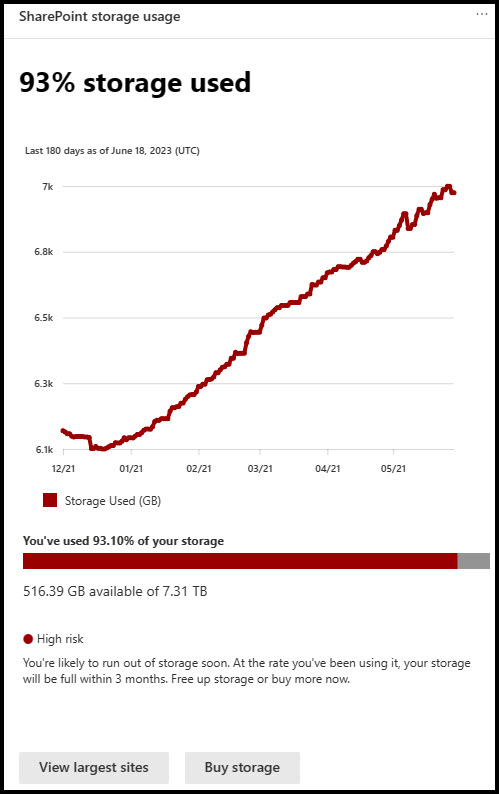
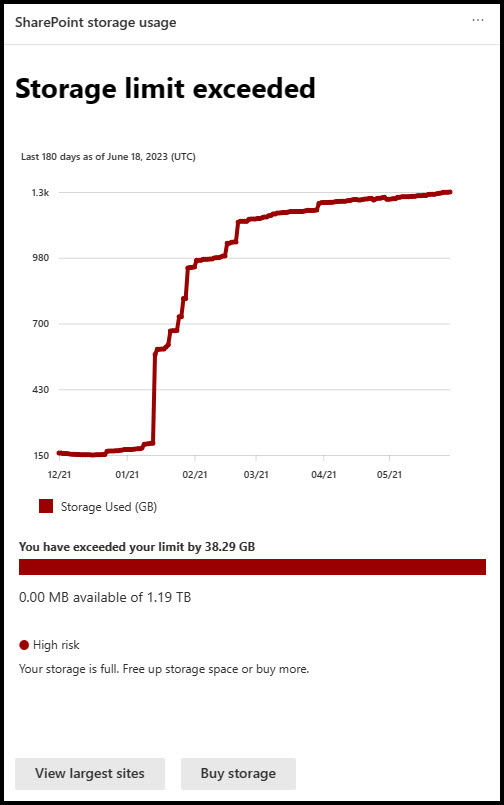
This results in them running all over the show trying to find work-arounds, like manually trying to delete versions of documents and being forced to choose what documents to delete.
Companies are resorting to registering new tenants solely to acquire an additional terabyte of storage, as it proves more cost-effective than purchasing extra file storage.
We’ve seen clients going back to Dropbox after leaving Dropbox in the first place for SharePoint, and spending years building their intranets on SharePoint and getting people to use them. Some companies are moving content out of Microsoft 365 completely to other cloud solutions because of space.
How does this make any sense?
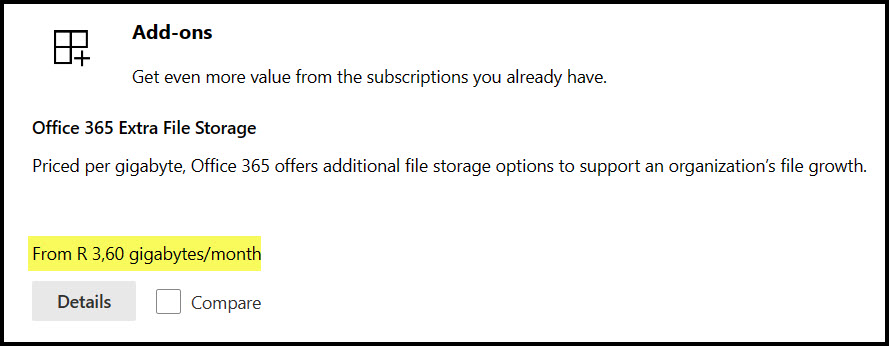
And why? Because companies are allocated a mere 1TB with an extra 10GB per user; and the price of storage on SharePoint Online for anyone on the receiving end of a Dollar exchange rate is unaffordable.
Who would be prepared to pay R3,686.40 per month for one Terabyte of storage, that works out to R44 236,80 per year – crazy costs when you consider you can buy a 5TB external harddrive from R2300. It doesn’t make sense to buy storage in lower increments at the rate we humans generate content, we work in Terabytes, not Gigabytes.
Yet we can allocate up to 25TB to a user at the click of a button at no extra cost.
So even if there are only 10 people in the company, you can have an extra 250TB for users, but you can only have 0,4% of that for an official company intranet on SharePoint! This defies explanation and it is destabilizing companies.
Every single site collection has 25TB available, it’s just blocked on tenant level by the overall storage limit.

Unfortunately, this strategy is causing disruptions and negatively impacting the reputation of our otherwise remarkable 20-year-old platform.
Microsoft’s current space allocation policy lacks coherence and appears primarily driven by financial considerations rather than providing optimal solutions for their clients.
BEST SOLUTION
Microsoft, we need all available user and tenant space allocated to us in one bundle. This is essential for facilitating seamless business management.
We will manage it from the SharePoint Admin Centre and decide for ourselves who and what gets the space. Businesses need to be prioritized and supported, not individuals. We need more storage space as a matter of urgency. The default for companies should be 25TB, not 1TB. We are paying more than enough on licensing fees to cover this.
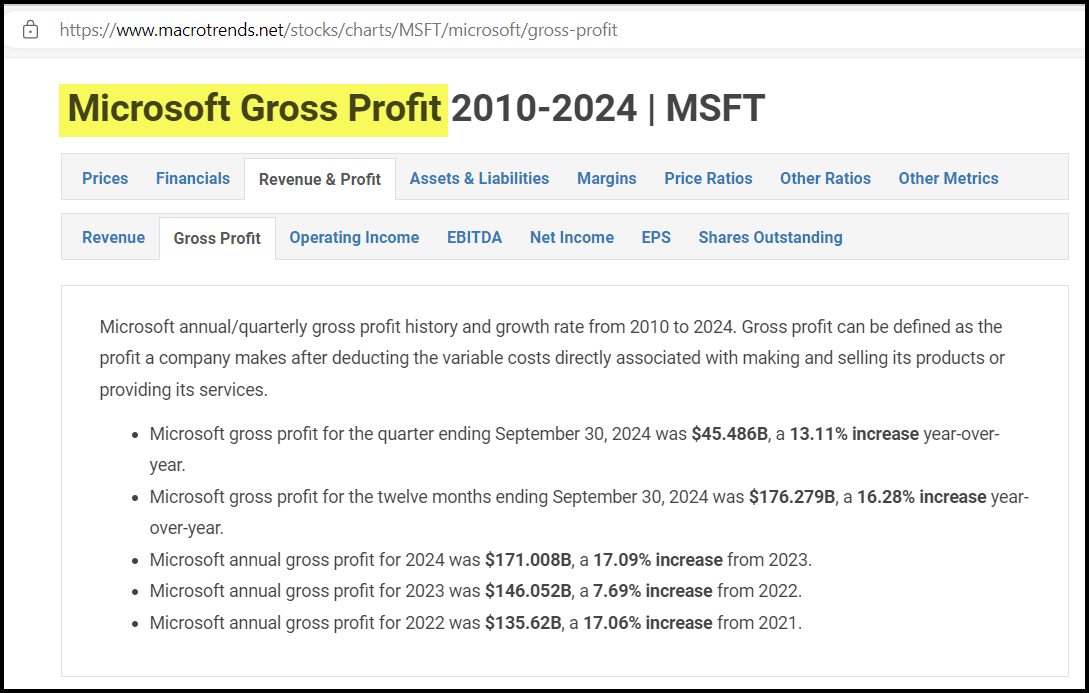
It is time to give back to your customers now. We have made you very rich.
Got an issue with this approach as much as we do? Vote it up on the Tech Community so Microsoft reconsiders this approach , please.
What to do in the meantime
There are a few options doing the rounds as we are forced to work around this, none of which are much better, and this is mine.
- Buy one new E3 license.
- Create a new user account called [name] Company [surname] Archive and assign the E3 license to it.
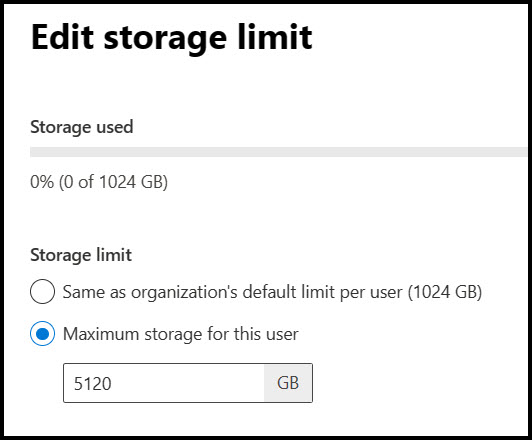
- Increase the OneDrive storage limit on that account to the max of 5TB.
- Only allow an IT Admin to have the login credentials of this account.
- Log a call with Microsoft to up the user limit to 25TB when required.
Now you are ready to move content in.
- Decide the strategy of what you need to move and why, (this is the big part).
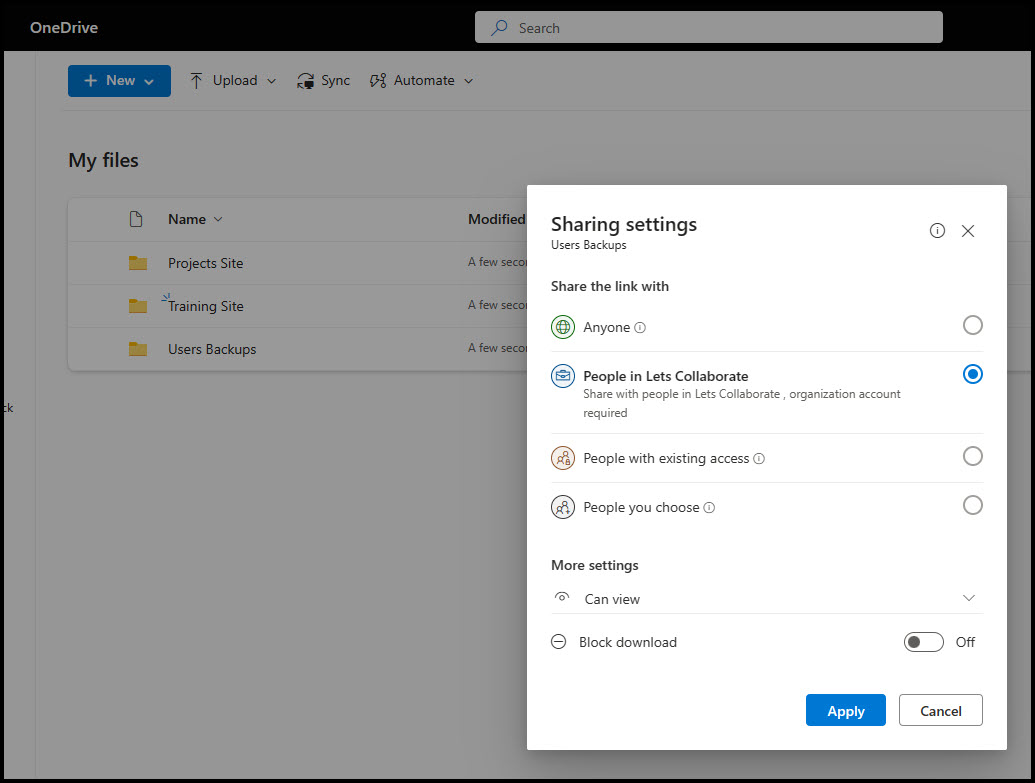
- The account holder will need to do the moving unless they create the folders and share them with the responsible business stakeholders, who can then move docs themselves.
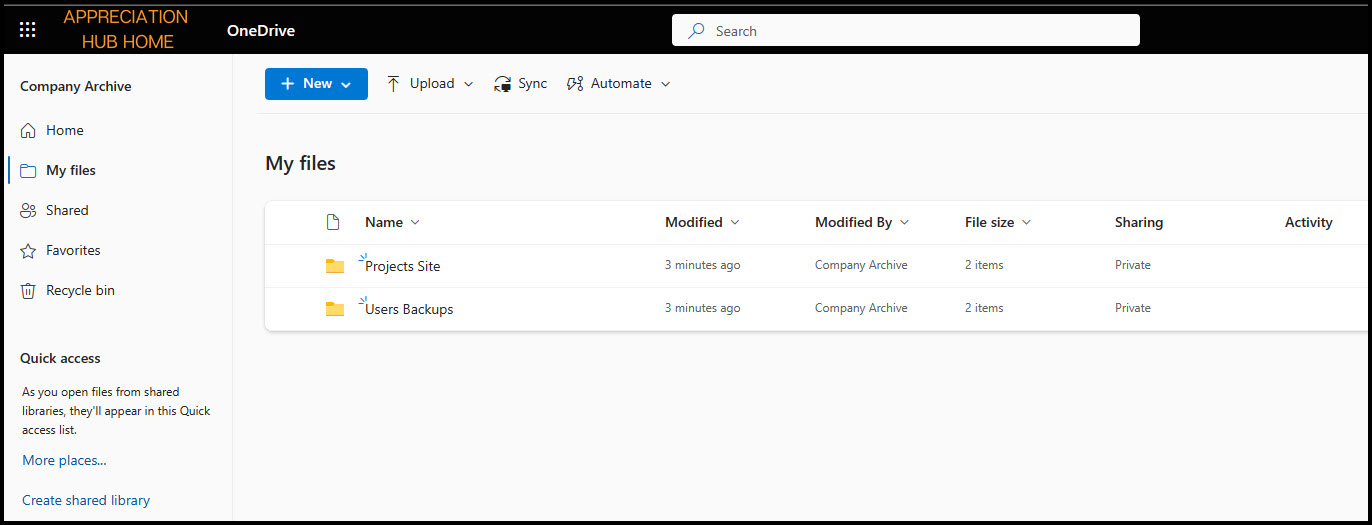
- Create a top level folder in that OneDrive account with the name of the site it will have content from.
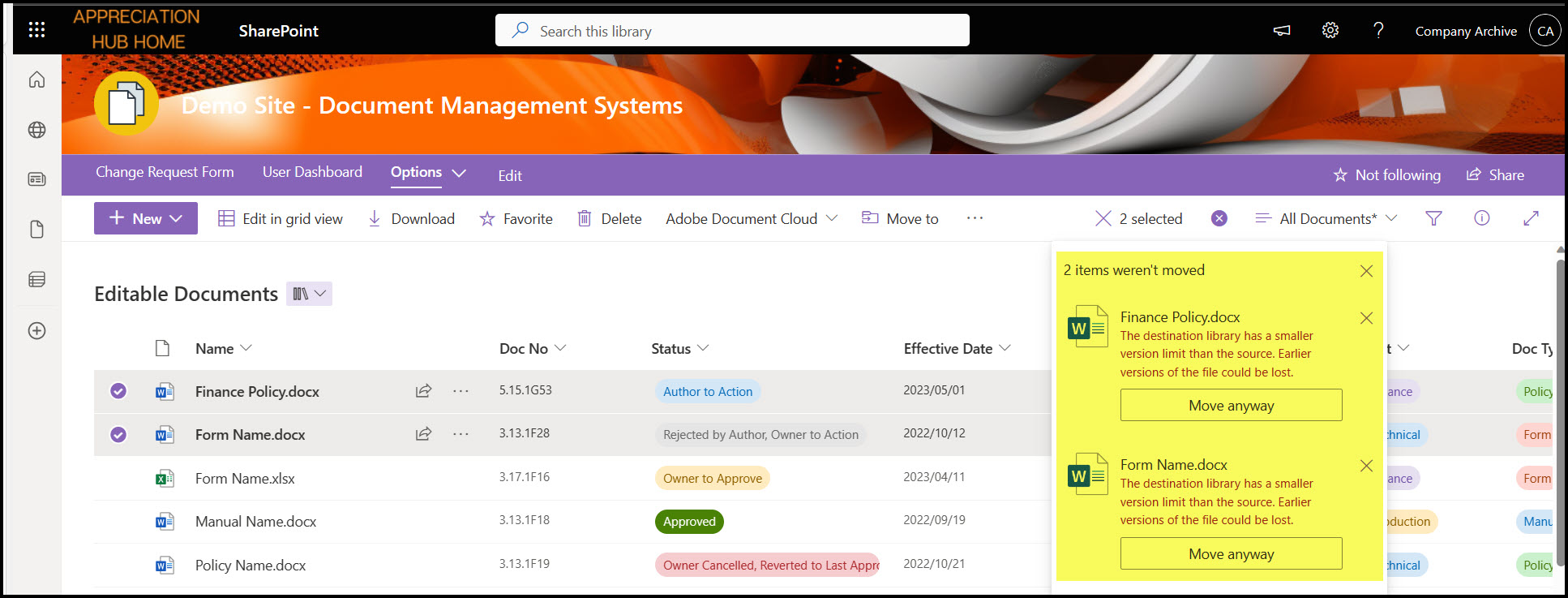
- Use the Move To function in SharePoint to move the content to the OneDrive folders. You could run PowerShell scripts if you have the knowledge and access to do so.
- For user accounts of ex staff – create a top-level folder called Users Backups and put all their content as is in folders per user below that.
- Share the folders with read rights to the relevant staff members thereafter.
- Put a link to the OneDrive archive account on the intranet navigation so people can get to it easily.
Downsides :
- OneDrive does not support metadata, so that will be lost. (This won’t be a consideration if you have everything in folders).
- OneDrive does not support major and minor versioning, so you will get an error warning on migration if the source library uses major and minor versioning. You can move the docs anyway though.
- You are going to have to rethink your architecture and create the folders in the OneDrive account before moving the docs over.
- If you have a new tenant and haven’t started on your intranet and document management yet, do this upfront and work it into your architecture and governance plan.
- It will take time to figure out what is on your existing intranet that needs to be moved, (if you don’t have special tools that can do that).
Upsides :
- Instant extra cheap space.
- You can do this out of box, no special tools required.
- The docs are still in the Microsoft 365 suite of products, so easy to access with the existing permissions structures.
Is this sensible? No.
Is it good governance? No.
Is it a pain? Yes, but all most of the moving options will be anyway.
Is it cost effective? Look at the numbers :
25 TB then costs R408,90 a month, which works out to R0,016 per GB. Quite a difference from R3686,40 I’d say…
Here’s some screenshots of the process.

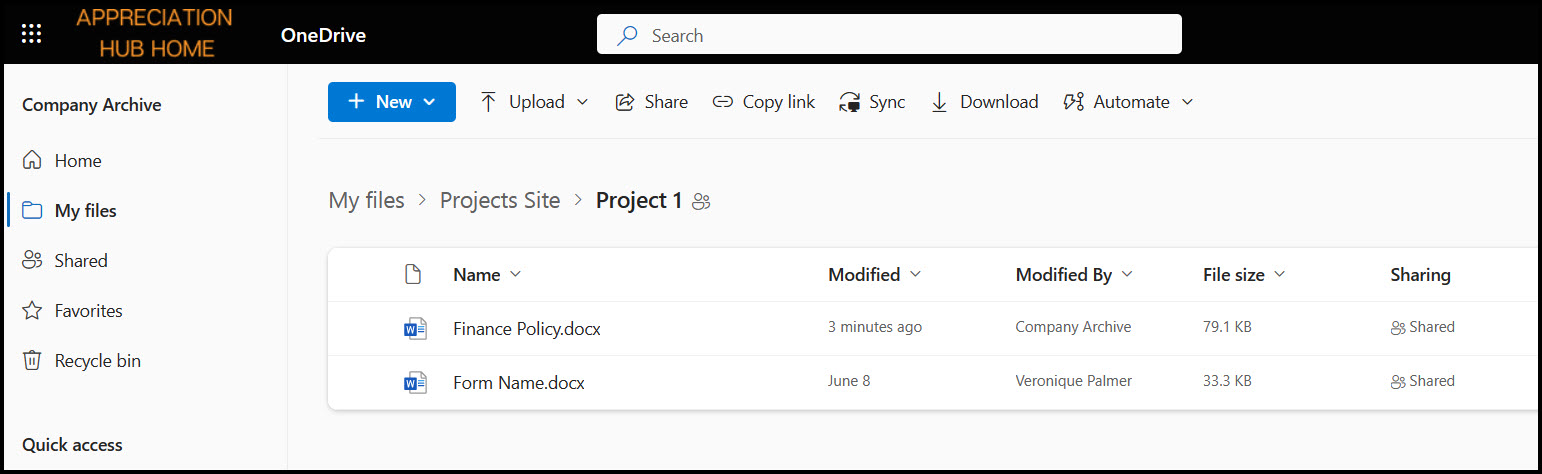
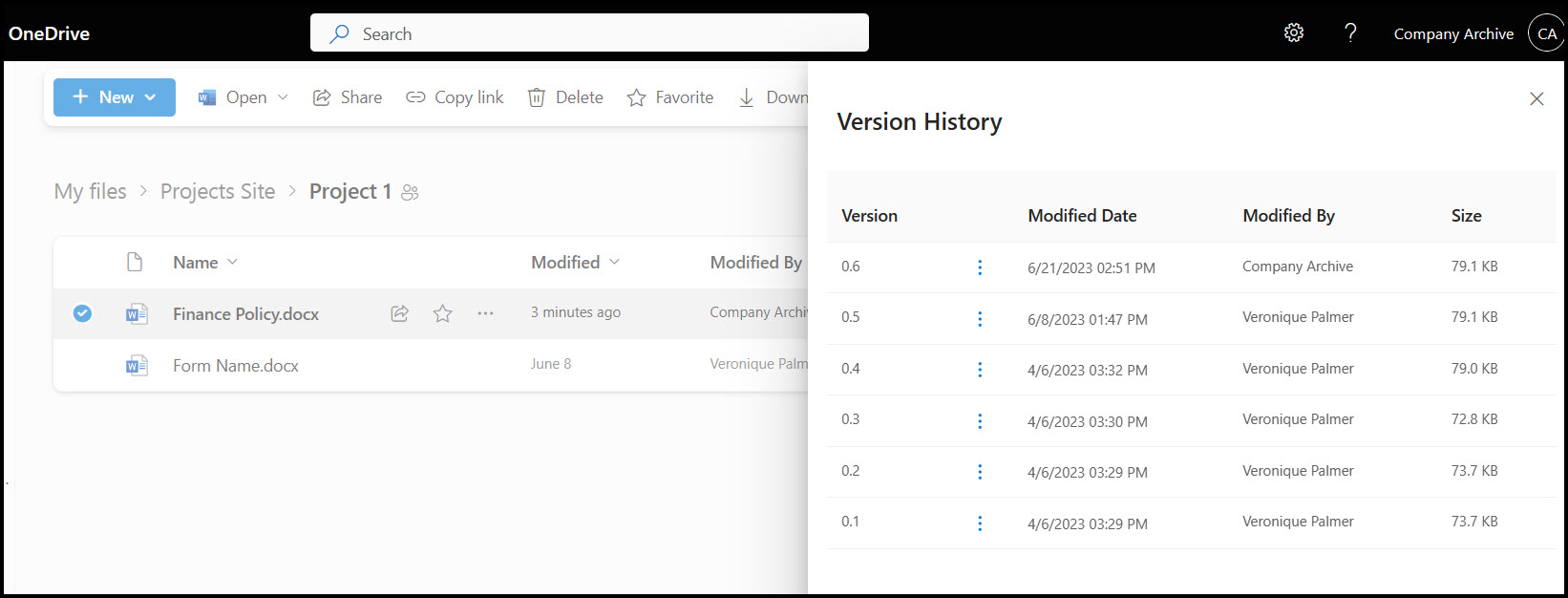
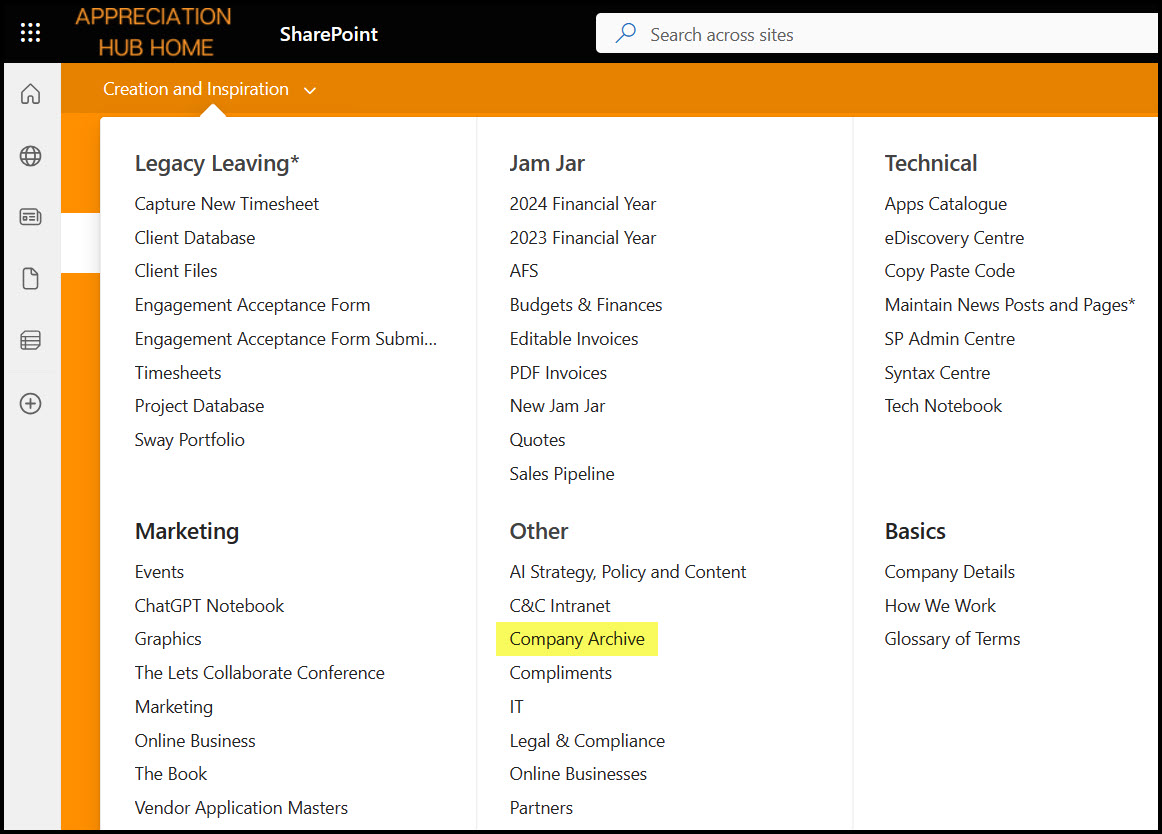
 Views from Veronique
[…] We also use OneDrive as a work-around for running out of space in SharePoint. […]
LikeLike
Hi Veronique,
Awesome writeup!
Do you think the following info on file versioning could assist?
When looking at the storage metrics of the site collection and drilling down to file levels, I’ve seen the files look huge!!, however, the actual size of the file is small. Further viewing the version history linked to the file, you can find that the file history is a full copy of the original file every time, thus using up the original storage of the file plus edits to the next file history.
Reference: Plan version storage for document libraries – SharePoint in Microsoft 365 | Microsoft Learn
Theres also a setting in the Admin Center related to version on new Sites and OneDrive’s that can be activated
Reference: Set default organization version limits – SharePoint in Microsoft 365 | Microsoft Learn
LikeLike
[…] user account is allocated 5TB by default in OneDrive, that can be put up to 25TB at no extra cost, (here’s how). A strategy needs to be put in place to decide what content would go to a OneDrive admin account […]
LikeLike
[…] We also use OneDrive as a work-around for running out of space in SharePoint. […]
LikeLike
Yes, very good point!
LikeLike
Maybe another downside is that the moved documents are no longer searchable from SharePoint by the average user.
LikeLike
[…] [Another] Work-Around for SharePoint Running Out of Space with Major Rant Included! […]
LikeLike